File upload method
This filing method allows you to upload all your quarterly wage data at once. You can upload files in any of the following formats.
Formats
- Comma-Delimited (Microsoft Excel template)
- ICESA (NASWA) Standardized Record Format
- EFW2 (formerly MMREF-SSA) Format
- Minnesota State Fixed Length
Submitting the File
After you create the file, use this procedure to submit the file:
IMPORTANT
Your submitted wage detail report must include all required employee information. Reports with missing or erroneous information are subject to a $25 administrative service fee for each adjusted or corrected employee record. Administrative service fees may be canceled under certain circumstances.
To submit the file:
- Log in to your account at ui.mn.gov
- On My Home Page, select Tax and Wage Detail Reporting.
- Select Submit or Adjust Wage Detail.
- Select the reporting period (year and quarter) for which you are submitting data, and then select Next.
- The Wage Detail Submission Process page displays. Select the Filing Method: File Upload - Attach electronic wage file, and then select Next.
- Select the File Type that matches the format of your file (Delimited, ICESA, EFW2, or Minnesota State Fixed Length), and then select Next.
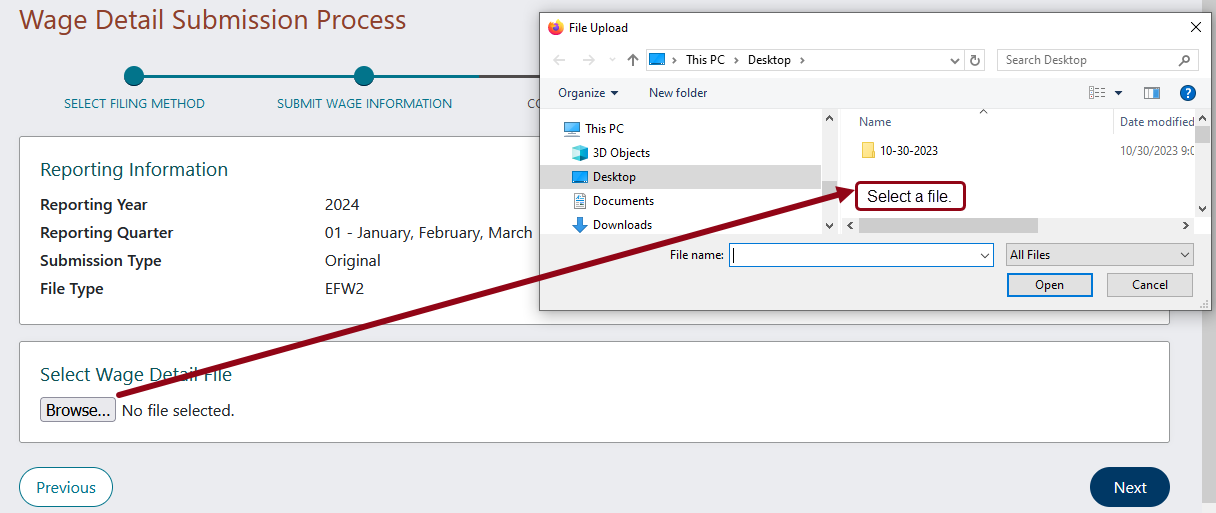
- Use the Browse button to locate your wage detail file. Select a file to upload, and then select Open. The title of your wage detail file will display, select Next. See example.
- The File Preview page opens. Review your uploaded wage detail information. If you:
- Have no File Errors, select the action: Accept file and proceed.
- Have File Errors, review the error messages, and then proceed as follows:
- Fatal errors cannot be processed until they have been fixed. You must correct the file and then re-submit. Select the action: Make file corrections and resubmit.
- Non-Fatal errors it is recommended you correct all errors before submitting the file; however, you can select the action: Ignore Errors and Continue, and then select Next.
Note: Files with more than 5 kilobytes of data receive a confirmation message. The file has been saved and will be processed within 24 hours. For additional steps to this process, refer to Submitted file upload files larger than 5 kilobytes.
- Review the 12th of the month information, update if necessary, and then select Next.
- Review the Wage Detail Report Summary and Summary of Units Reported information:
- If correct, select Next.
- If incorrect, or you see a section named Summary of Units Not Reported, select Previous to go back and review/fix entries.
- If you are not ready to submit your report, you can select Save and Exit to save your work and finish the process later.
- You are almost done! Review for accuracy the Total Gross Wages, Taxable Wages and Amount Due, and then select Submit Wage Detail.
- A confirmation number is provided on the next page. Print the Wage Detail Submission Confirmation page for your records.